HomeHow it works
How VibeStream works, from TV to playlist
Connect a screen, choose what kind of venue you run, set your hours. The funny videos take care of themselves after that.
What you need
VibeStream runs on the screens you already have. Nothing to install on a computer and no cables beyond the ones the TV came with.
- Screen
- Any TV or display with a built-in web browser, made in 2018 or later, or any screen with a free HDMI port for our stick
- Internet
- Wi-Fi or Ethernet with at least 5 Mbps per screen. Clips stream at 720p
- Sound
- None. Playlists are built to be watched on mute
- Account
- An email address. We only ask for a card when the 14-day trial ends
Connect the screen
There are two ways to get VibeStream onto a screen. Both end with the same 4-letter pairing code, and you can mix them across a venue.
In the TV browser
- On the TV, open the web browser and go to vibestream.co.in/play.
- A 4-letter code appears in large type, for example KTRW.
- In your dashboard, choose Add a screen and type the code. The screen starts playing within ten seconds.
- Set the browser to full screen. Most TVs remember this after the first time.
With the VibeStream HDMI stick
- Plug the stick into a free HDMI port and the USB cable into the TV or the wall adapter in the box.
- Switch the TV to that HDMI input. The stick asks for your Wi-Fi network once.
- Type the pairing code it shows into your dashboard, as above. The stick turns on with the TV from then on.
If the Wi-Fi drops. Every screen stores the next six hours of clips, so a lost connection doesn’t leave a black screen. It catches up quietly when the network is back.
Choose a venue profile
A profile is the rulebook for one screen: how long clips run, how quickly they follow each other, which topics play and which never do. There are six, written for cafés, gyms, barbershops, waiting rooms, offices and laundromats.
On the Floor and Chain plans each screen can have its own profile, so the screen by the treadmills can be quicker than the one at reception.

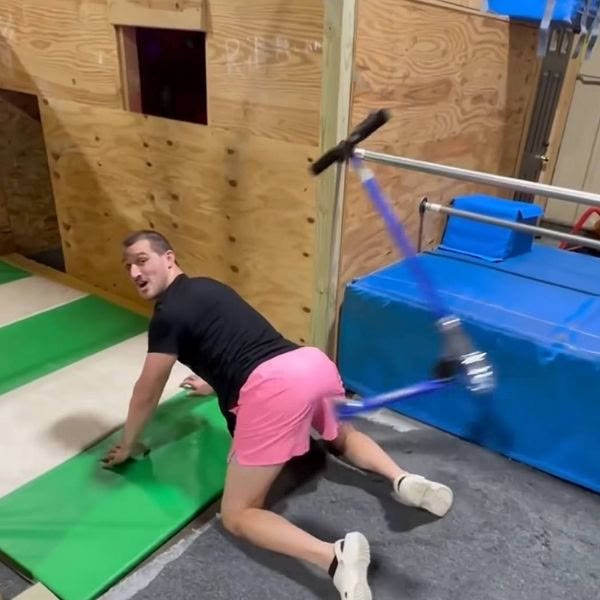
Captions are part of the clip, set on a solid bar below or above the action so they never cover what happens.
Set your hours and notices
Tell VibeStream when you open and close. Outside those hours the screen shows your logo on a plain background, or switches off if the TV supports it.
Quiet mode
Choose a time before which only the gentlest clips play. Cafés often use it until 9 am; clinics keep it on all day.
Your own notices
Write short text cards like “Happy hour 4 to 6 pm” or “Please take a number at the desk”. They show for eight seconds between clips, every 10 to 20 minutes, in white type on a colour you pick. Corner includes two notices per screen, Floor and Chain include three.
Notices are yours alone. VibeStream never sells space on your screen, and no outside brand will ever appear between clips.
Day to day
- New clips arrive automatically. Weekly on Corner, daily on Floor and Chain. Nothing to download.
- Skip from your phone. Open the dashboard, tap Skip and the screen moves on. Tap Never here and that clip won’t play on that screen again.
- See what played. The play log lists every clip, screen and time for the past 90 days, which helps if a guest asks about something they saw.
- Staff need no training. The screen runs by itself. Most venues give the dashboard to one manager.
When something goes wrong
If a screen has been offline for 30 minutes during opening hours, we email you with the screen name and the last time it played. The usual fix is to switch the TV input back to the browser or the stick.
For anything else, write to support@vibestream.co.in or use the contact form. We answer within one business day, and Floor and Chain customers can use chat during their opening hours.